Docker for Beginners: What It Is and Why It Matters
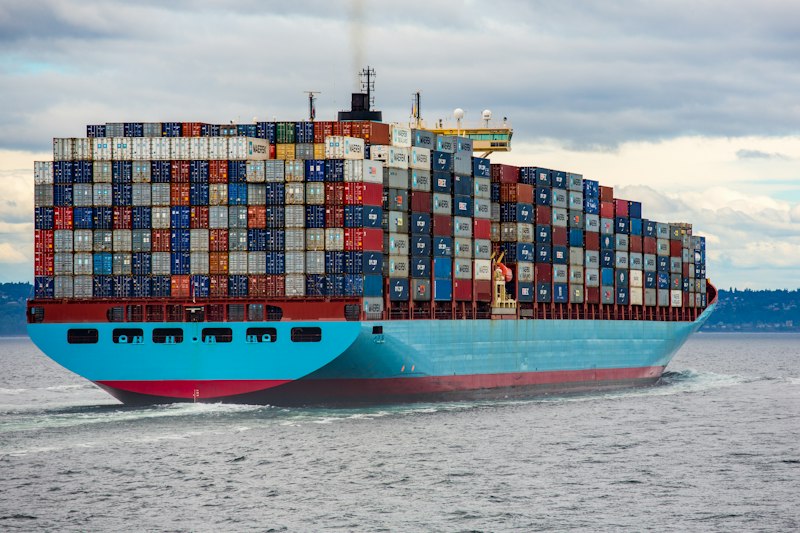
Docker for beginners doesn't have to mean wading through DevOps jargon. At its core, Docker solves one painfully common problem: code that runs on your laptop but breaks everywhere else. This guide explains what containers actually do, walks through the handful of commands you'll use constantly, and gets you to your first working image — no prior ops experience needed.
The official Docker documentation is excellent once you know the basics, and this post is the on-ramp to it.
The Problem Docker Solves
"It works on my machine" breaks deployments and wastes hours. The cause is usually a difference in environment: a different Node version, a missing system library, an environment variable set on your laptop but not the server. Docker packages your app and everything it needs — runtime, dependencies, config — into a single unit that runs identically on your machine, your teammate's machine, and production.
What Is a Container?
A container is a lightweight, isolated environment that bundles your app with its dependencies. Think of it as a mini virtual machine — but much faster to start, much cheaper to run, and shareable as a single file. Two terms you'll see constantly:
- Image — the blueprint. A read-only template built from a
Dockerfile. - Container — a running instance of an image. You can start, stop, and throw away containers freely; the image stays put.
The 5 Commands You Actually Need
docker pull nginx          # download an image
docker run -p 80:80 nginx  # run a container
docker ps                  # list running containers
docker stop <id>           # stop a container
docker-compose up          # start multi-container apps
A quick mental model for each: pull fetches a prebuilt image, run turns it into a live container, ps shows what's running, stop shuts one down, and docker-compose up brings up a whole stack defined in a compose.yaml file. Master those five and you can handle the overwhelming majority of day-to-day Docker work.
Docker vs Virtual Machine
The reason containers feel so much lighter than VMs is that they share the host's kernel instead of booting a full operating system each time:
| VM | Container | |
|---|---|---|
| Boot time | Minutes | Seconds |
| Size | GBs | MBs |
| Isolation | Full OS | Process-level |
This is why you can run a dozen containers on a laptop that would choke on three virtual machines.
Your First Dockerfile
FROM node:20-alpine
WORKDIR /app
COPY package*.json ./
RUN npm install
COPY . .
EXPOSE 3000
CMD ["npm", "start"]
Build it: docker build -t my-app .
Run it: docker run -p 3000:3000 my-app
Layers are cached, so listing COPY package*.json and RUN npm install before copying the rest of your code means dependencies only reinstall when they actually change. That one ordering trick can cut your build time dramatically.
How Images, Layers, and the Cache Fit Together
Once you've run your first build, it pays to understand what Docker is actually doing under the hood, because it explains nearly every "why is this so slow" question beginners run into. Each instruction in a Dockerfile — FROM, COPY, RUN, and so on — creates a new read-only layer stacked on top of the previous one. An image is just those layers plus a small bit of metadata. When you run a container, Docker adds one thin writable layer on top; everything you change at runtime lives there and disappears when the container is removed.
This layered design is the reason build order matters so much. Docker caches each layer and reuses it on the next build as long as nothing it depends on has changed. The moment one layer is invalidated, every layer after it has to be rebuilt. That's why putting COPY package*.json ./ and RUN npm install before COPY . . is not a stylistic choice — it's the difference between a two-second rebuild and a two-minute one. Editing a single source file shouldn't force a fresh npm install, and with the right ordering it won't.
A few commands make this tangible. Run docker images to see your built images and their sizes, docker history my-app to inspect the layers that make up an image, and docker system df to see how much disk Docker is using. When your machine fills up — and it will — docker system prune reclaims space by deleting stopped containers, unused networks, and dangling images. Beginners are often shocked how much disk Docker quietly consumes; running prune every week or two keeps it in check.
Volumes: Keeping Data When Containers Disappear
Because that writable container layer vanishes when the container is removed, anything you want to keep — a database's files, uploaded images, logs — needs to live outside the container. That's what volumes are for. A volume maps a directory inside the container to storage that Docker manages, or to a folder on your host machine. For example, docker run -v $(pwd):/app my-app mounts your current directory into the container, which is invaluable during development: you edit code on your host and the running container sees the change instantly, no rebuild required. For databases like Postgres or MySQL, you'll almost always attach a named volume so your data survives restarts and upgrades. Forgetting this is one of the most common early mistakes, and it shows up as "my database is empty again every morning."
Docker Compose in One Minute
Real applications are rarely a single container. A typical web app might be an API, a database, and a cache like Redis — three services that all need to start together and talk to each other. Wiring that up by hand with docker run flags gets painful fast. Docker Compose solves it with a single compose.yaml file that describes every service, its image, ports, environment variables, and volumes. Then docker compose up starts the whole stack and docker compose down tears it down. Services in the same Compose file can reach each other by name — your API connects to a host called db instead of an IP address, because Compose sets up the networking for you. For local development this is usually where Docker stops being a curiosity and starts being something you reach for every day.
Common Mistakes
- Copying everything before installing dependencies. Breaks layer caching and makes every build slow. Copy your lockfile and install first.
- Forgetting a
.dockerignore. Without it, you shipnode_modules,.git, and secrets into your image. Add one the same way you'd add a.gitignore. - Running as root. Fine for learning, risky in production. Add a non-root user once you're past the basics.
- Storing data in the container. Anything not in a volume is gone the moment the container is removed. Use a named volume for databases.
- Never pruning. Old images and stopped containers pile up silently. Run
docker system pruneperiodically to reclaim disk.
When to Use Docker
Reach for Docker on any project that involves more than one service, deployment to a server, or collaboration with a team — that's most professional projects today. It pairs well with a solid local toolchain; if you're still assembling yours, see our top VS Code extensions and the wider tech category. And if Docker feels intimidating, that's normal — the fastest way through is to build one small thing, exactly the approach in how to learn programming fast.